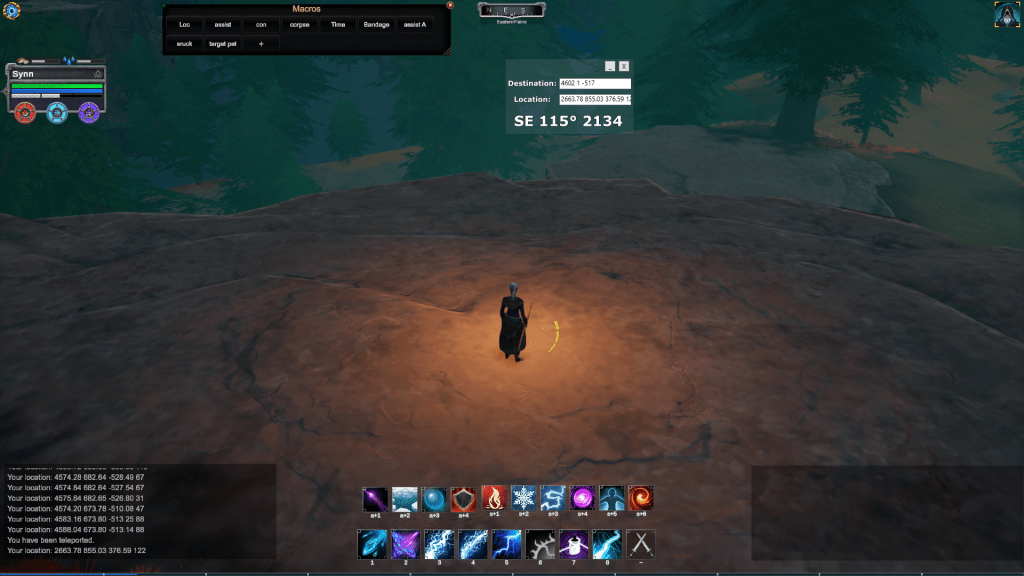
I created a program that lets you enter a destination location in x z y f format, an x-y coordinate system but with z for height and f for compass facing thrown in) and when you either enter a current location or use /loc in game it will determine what direction you need to run and how far you need to run to get to that destination.
Due to Windows security and general browser security, I have to host it on GitHub and describe a process for getting the program to run. You have the option of downloading source code and building it yourself.
Download Instructions
In your browser go to https://github.com/johnrigsby1970/MMONavigator/tree/master
There should be a green button that says “Code” with a drop down.
Click it and at the bottom should say Download ZIP.
Download the zip file. Look in your downloads folder and find the zip file MMONavigator.zip. Right click and choose extract all.
Within that extracted folder go to MMONavigator-master\bin\Release\net8.0-windows Double click to run MMONavigator.exe. Its possible Windows doesnt show the file extension “.exe” in which case execute MMONavigator.
I don’t remember which order the warnings will come in. One is that I have not signed this code and Windows will not trust it. The other is that it requires the Desktop runtime for .Net 8. The latter it should provide a download option to install it. The other I will describe below.
You likely will see a warning “Windows protected your PC”. This is because the EXE is not digitally signed. I would have to pay $600 PER YEAR for a certificate to sign it. Im not gonna. Trust it, don’t trust it, up to you.
It will only show one option to not run it and close the window. But if you look there is a link that says “more info” Click More info A new option to Run anyway will show.
Click the Run anyway button.
You may get a warning that it needs to scan it for viruses before it runs but it should launch when that is done.
How To Use It
Enter a coordinate in the destination text box that you either make up or get from the /loc command.
Ex: 2100 45 -2134 42
You do not have to enter that, lets say you have a coordinate from Shalazam of 2100 -2134. That is x coordinate of 2100 and y coordinate of-2134. Enter it as the “Destination” and that should be fine.
Do not put a comma in, it wants numbers separated by a space, but it will scrub the comma out so long as you have a space between the numbers still.
Maybe you know the location of a T3 box and want to generally know in which direction to run or you are all turned around and know the location of a bind stone.
With Pantheon running this window should remain open and on top, unless you minimize it, in which case you can always tab to it and see it again.
Execute /loc and it should populate the Location text box. You can do so manually but that is not the purpose of our using this. It should then give you directions after that text box telling you which way to face and how far the destination is from that location.
You should be able to copy the folder contents to a different location than your downloads folder if you like. It will need all five files. Remember, this doesnt give way points. Its an as the crow flies direction and distance. So you may need to run around a mountain and hit /loc again to get yourself back on course.
Build It Yourself
If you do not trust the EXE directly. Get Visual Studio Code, download my code from Github, build it, and run it yourself after inspecting the code. Enjoy.
You can copy a /loc result, say of your corpse, into the destination text box. Just make sure its numbers. /loc has four numbers, you can put them all in, or just the first three or just the first and third.
 Strength and Honor
Leave a comment